

How to automatically transfer photos, videos, and files to "Beeline Cloud"
May 29, 2026 13:17 Society iOS device users can transfer photos and videos from iCloud, documents from Google Drive, and archives from Google Photos to "Beeline Cloud" without manually uploading each file separately. For some scenarios, the service already has built-in import, while for others, it is enough to prepare an archive once and start the transfer. There can be a lot of source files in iCloud or Google services, and manually transferring a large archive is time-consuming and difficult. In "Beeline Cloud," this process can be simplified and automated. The service is available to customers of all telecom operators, and you can log in using your phone number. "Beeline Cloud" is not tied to payments in the App Store, and the service's infrastructure is located in Russia, not using international traffic. Previously, "Beeline Cloud" was recognized as one of the best cloud applications for Android and iOS in a study by the Digital Expertise Center of Roskachestvo.
How to automatically transfer photos and videos from iCloud For many iOS users, iCloud has been a familiar way to free up space on their devices: photos and videos were sent to the cloud, and only previews could be stored in the gallery. If you need to quickly transfer this archive and ensure that new files are also saved automatically, "Beeline Cloud" has the simplest scenario for this. Step-by-step instructions:
1. Download the "Beeline Cloud" app from the App Store.
2. Log into the service using the phone number of any operator.
3. Enable auto-upload for photos and videos.
After this, photos and videos will be uploaded to "Beeline Cloud" automatically. Even if only previews are stored in the gallery and the originals are in iCloud, auto-upload will pull the original files directly from the cloud. The user does not need to manually upload folders one by one—just set up auto-upload once and continue using "Beeline Cloud." In addition, the service can be shared with loved ones: the account owner can invite an unlimited number of users, create shared albums, and make a common feed of photos and videos.
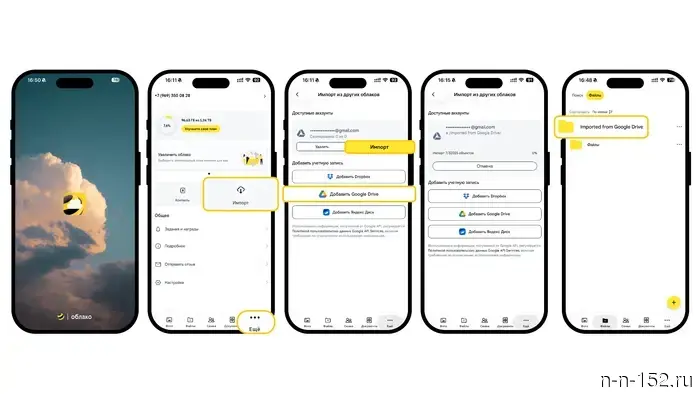
How to automatically transfer files from Google Drive If we are talking about documents, spreadsheets, presentations, PDFs, and everything stored on Google Drive, "Beeline Cloud" already has built-in import for this. Step-by-step instructions:
1. Download the app or open "Beeline Cloud" in your browser.
2. Log into the service.
3. Open the "More" section.
4. Select "Import."
5. Choose Google Drive.
6. Log into Google Drive.
7. Start the import and wait for it to complete.
After starting the import, the app shows progress—how many files have already been transferred and how many are left. All imported data from Google Drive will appear in a separate folder in the "Files" section of "Beeline Cloud."
How to transfer photos and videos from Google Photos For Google Photos, the process is slightly different. Photos and videos from this service need to be archived and sent to Google Drive first, and then imported into "Beeline Cloud." The most straightforward scenario is through Google Takeout. Step-by-step instructions:
1. Open Google Takeout.
2. In the "Products" section, click "Deselect all" and leave the checkbox only next to Google Photos.
3. At the bottom of the page, click "Next."
4. In the delivery method, select "Add to Drive."
5. Leave the parameters: frequency—one-time, file type—ZIP, size—2 GB.
6. Click "Create export."
7. Wait for Google to create the archive. This may take a few days, and the link will be sent to your email.
8. Open the folder with the archive in Google Drive.
9. Then import this folder into "Beeline Cloud" (see the section above).
It is important to note that at this stage, the archive is being transferred to the cloud. To view photos and videos as a regular gallery, unarchiving will be needed after the transfer.
In summary, the logic is as follows:
- iCloud—the fastest scenario: enable auto-upload, and photos and videos start saving automatically to "Beeline Cloud";
- Google Drive—files are transferred directly through the built-in import in "Beeline Cloud";
- Google Photos—first export photos and videos to an archive via Google Takeout to Google Drive, and then import this archive or unarchived files to "Beeline Cloud."
In all cases, "Beeline Cloud" allows you not to transfer files manually one by one, but to set up a convenient storage scenario in a reliable place without using international traffic and to use a secure Russian cloud as the primary option.
Advertisement of PJSC "VimpelCom." More details on the website: beeline.ru Moscow, OGRN 1027700166636 The NIA "Nizhny Novgorod" has channels on Telegram and MAX. Subscribe to stay updated on major events, exclusive materials, and operational information. Copyright © 1999—2025 NIA "Nizhny Novgorod." When reprinting, a hyperlink to NIA "Nizhny Novgorod" is mandatory. This resource may contain materials 18+.

Другие Новости Нижнего (Н-Н-152)
 A rabies quarantine has been introduced in the village in the Lyskovsky district.
News of Nizhny Novgorod
A rabies quarantine has been introduced in the village in the Lyskovsky district.
News of Nizhny Novgorod
 The baby aardvark from Nizhny Novgorod's "Limpopo" was given a plush snake - video
News of Nizhny Novgorod
The baby aardvark from Nizhny Novgorod's "Limpopo" was given a plush snake - video
News of Nizhny Novgorod
 Gleb Nikitin and Yuri Seliverstov discussed the expansion of cooperation.
News of Nizhny Novgorod
Gleb Nikitin and Yuri Seliverstov discussed the expansion of cooperation.
News of Nizhny Novgorod
 Bees with a particularly dangerous disease have been found in Bor.
News of Nizhny Novgorod
Bees with a particularly dangerous disease have been found in Bor.
News of Nizhny Novgorod
 Traffic restrictions have been introduced on the bridge over the Tesh River in the Nizhny Novgorod region.
News of Nizhny Novgorod
Traffic restrictions have been introduced on the bridge over the Tesh River in the Nizhny Novgorod region.
News of Nizhny Novgorod
 The Ministry of Emergency Situations denied the introduction of a ban on the use of phones at gas stations.
News of Nizhny Novgorod
The Ministry of Emergency Situations denied the introduction of a ban on the use of phones at gas stations.
News of Nizhny Novgorod
How to automatically transfer photos, videos, and files to "Beeline Cloud"
News of Nizhny Novgorod